
PDF to Markdown for RAG, on Your Own Computer
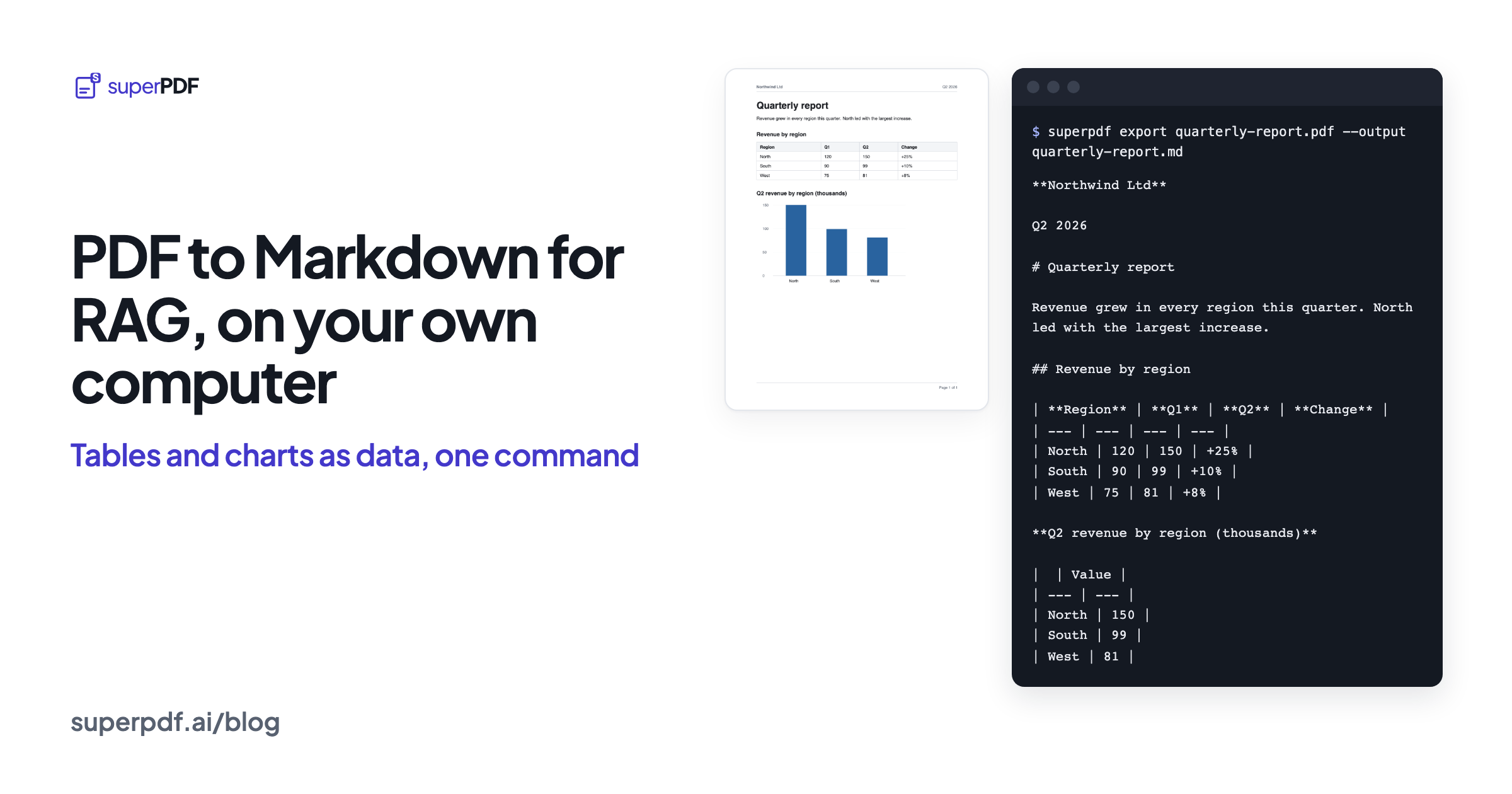
Flatten a PDF into one long string and a retrieval pipeline loses what the layout was telling it: which line is a heading, which numbers belong to the same table row, which page a fact came from.
Short answer: superpdf export report.pdf --output report.md writes Markdown with headings, tables, chart values and a marker at the end of every page. It runs on your computer, and on the one-page example below it takes under half a second.
I build superPDF, so read the benchmark section with that in mind. Every command line and command output below is from a real run of @superpdf/cli 0.4.1, and you can run them yourself.
PDF to Markdown CLI: one command
Install the command-line tool once. It needs Node.js 22 or later:
npm install -g @superpdf/cli
Then point it at a PDF:
superpdf export quarterly-report.pdf --output quarterly-report.md
{"operation":"export","format":"markdown","output":"quarterly-report.md","pages":1}
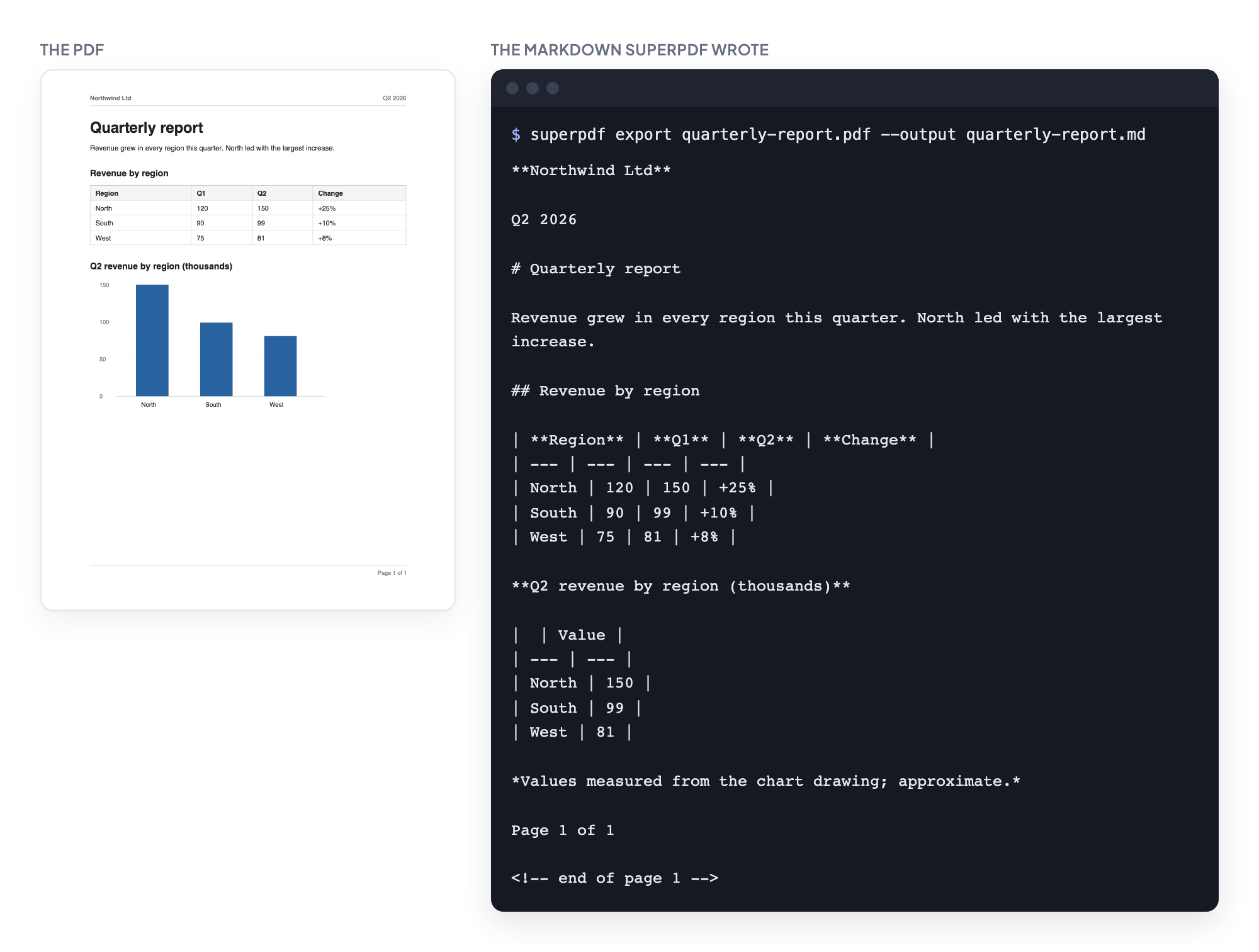
On an Apple M4 Pro, five runs took between 0.43 and 0.55 seconds each, including starting Node. The very first run after installing took 0.72 seconds. The command reads and writes local files only; it doesn’t upload anything. This is the PDF and what came out:
What the Markdown keeps
Headings stay headings. "Quarterly report" became # Quarterly report and "Revenue by region" became ## Revenue by region. Header-aware splitters cut on these, so a chunk carries the section it came from.
Tables stay tables. The four-column revenue table came out as a Markdown table with the same rows and columns. When a table has merged header cells, which Markdown can't express, add --tables html and those tables are written as HTML instead.
Charts become numbers. The bars in the chart are drawn shapes, not text. Here is what pdftotext 26.04 returns for the same chart, one label per line: 150, 100, 50, 0, North, South, West. The heights of the bars are gone. superPDF measured the bars and wrote a table of their values, followed by a note that they are approximate:
|  | Value |
| --- | --- |
| North | 150 |
| South | 99 |
| West | 81 |

*Values measured from the chart drawing; approximate.*
On this file the measured values, 150, 99 and 81, match the Q2 column of the printed table exactly. Keep the note in your chunks anyway. A model that answers "about 150" from a measured chart is correct; one that quotes "150" as if it were printed on the page is overstating what the source says.
Page boundaries are marked. Each page ends with <!-- end of page 1 -->. Split on those markers and every chunk knows its page number, which is what you need for citations like "see page 14".
What it doesn’t strip. The running header ("Northwind Ltd", "Q2 2026") and the footer ("Page 1 of 1") stay in the Markdown as lines of their own. On a 200-page report that is 200 copies of the company name in your index. The JSON export, below, marks those lines so you can drop them.
When you need coordinates: JSON
For highlighting the source of an answer, or for checking a citation against the page, export JSON instead:
superpdf export quarterly-report.pdf --output quarterly-report.json
Every block comes back with its type, its text and where it sits on the page, down to each line's font (trimmed here to the fields that matter):
{
  "type": "heading",
  "text": "Quarterly report",
  "level": 1,
  "bbox": [72, 70, 167.49, 22],
  "lines": [{ "text": "Quarterly report", "fontSize": 22, "font": "Helvetica-Bold", "bold": true }]
}
The running header ("Northwind Ltd", "Q2 2026") comes back typed header, so you can drop it before indexing.
LangChain PDF loader and LlamaIndex reader
If your pipeline is in Python, these packages call the same reader and give you one document per page, with the page number in the metadata. The snippets follow the packages’ documentation; their output isn’t shown here.
LangChain:
from langchain_superpdf import SuperPDFLoader
from langchain_text_splitters import MarkdownHeaderTextSplitter

docs = SuperPDFLoader("quarterly-report.pdf").load()  # one Document per page

splitter = MarkdownHeaderTextSplitter([("#", "title"), ("##", "section")])
chunks = []
for doc in docs:
    for chunk in splitter.split_text(doc.page_content):
        chunk.metadata.update(doc.metadata)  # keep source and page for citations
        chunks.append(chunk)
LlamaIndex:
from llama_index.readers.superpdf import SuperPDFReader

docs = SuperPDFReader().load_data("quarterly-report.pdf")  # one Document per page
One page per document has a cost: a section that runs onto the next page starts that page’s document without its heading. If your sections often cross pages, load the whole file as one document (mode="single" in the LangChain loader, return_full_document=True in the LlamaIndex reader) and split it by headings instead.
Install them with pip install -U langchain-superpdf or pip install -U llama-index-readers-superpdf. The Python packages bring their own Node.js, and the first load downloads the reader (about 220 MB) into your cache folder once. The LangChain and LlamaIndex guide covers folders, PDFs that arrive as bytes, and every option.
Scanned pages
A scanned page is a picture of text, so there is nothing to extract until it is read. superpdf export runs OCR on pages without a text layer, in English and 14 other languages. OCR takes noticeably longer than reading a text page; if you know a file has no scans, --no-ocr skips OCR.
How accurate is it?
We ran the open-source test suite of ParseBench, a public benchmark of 2,078 documents, against the superPDF reader once. It scored 65.0 out of 100 overall. superPDF is not on the official leaderboard, so this is our own measurement, not an independent one. Here it is next to scores published on the leaderboard as of October 12, 2026:
| Parser | Kind | Overall | Tables | Charts |
|---|---|---|---|---|
| LlamaParse Agentic Plus | Paid cloud service | 90.2 | 93.4 | 94.2 |
| superPDF reader (our run) | Open source (Apache-2.0), runs locally | 65.0 | 68.4 | 52.2 |
| PyMuPDF4LLM | Open source | 53.5 | 72.0 | 2.2 |
| Docling-models | Open source | 50.6 | 66.4 | 52.8 |
| MarkItDown | Open source | 18.6 | 15.8 | 2.0 |
The table supports two conclusions. The top paid cloud parser on the leaderboard is far more accurate, by 25 points overall. Among the open-source parsers listed here, superPDF scores highest overall, though PyMuPDF4LLM scores higher on tables and Docling-models slightly higher on charts. The Performance page lists every parser and category we compared and how the run was done.
When to use something else
- You need the highest accuracy and the documents may leave your network. The top paid cloud parser scores far higher, as the table shows.
- You need exact chart values. superPDF measures charts from their drawing and says so. If the numbers matter, get the source data.
- You only index for keyword search.
pdftotextalready gives you every word; headings and tables matter when a model has to read the chunk.
If you would rather try it without installing anything, PDF to text runs the same reader in your browser and saves a Markdown file.